Showing posts with label deployment. Show all posts

Tuesday, March 15, 2016

How to change an existing Java application to dynamic web application in Eclipse and deploy it to tomcat server?

I have an old application to enhance and want to convert it into dynamic web application in Eclipse.

1. Open the java application in eclipse. Right click on the project name, and then choose "properties".


2. Choose Project Facets on the left side. On the right side, check "Dynamic Web Module" and "Java" box. Then click OK button.


3. Now this project is a dynamic web project.

4. Deploy the application to local tomcat server. Go to properties again as step 1.

Choose Deployment Assembly on the left side, then in the right side, add the real source directory and deploy path. Then click ok.


5. Add web module into tomcat 8 server.
Right click the Tomcat server and choose Add and Remove, the in the pop up window, add left side application to the right side. Now we can restart tomcat server, the new application will be deployed to the server side and run.


Monday, February 22, 2016

Use WSO2 ESB Developer Studio to Create my first project (2) - Deployment

1. Create Composite Application project
WSO2 DevStudio allows you to package your artifacts into a Composite Application aRchive (CAR) and deploy it to WSO2 servers.

1) Click on Composite Application Project in Developer Studio Dashboard.


 2) Enter composite project name.

 3) Click finish button.


2. Add WSO2 ESB server in Developer Studio

We've installed WSO2 ESB server in my machine. Here we would like to add ESB server to Developer Studio. For detail on how to install WSO2 ESB server, please see my previous blog.

Setup WSO2 ESB server and ActiveMQ server (Part 1) - Installation


Setup WSO2 ESB server and ActiveMQ server (Part 2)


Setup WSO2 ESB server and ActiveMQ server (Part 3) - WSO2 ESB and ActiveMQ connection


1) Click on Add Server - Server in Developer Studio Dashboard.

 
2)  Choose the server type.
3) Click Finish button.

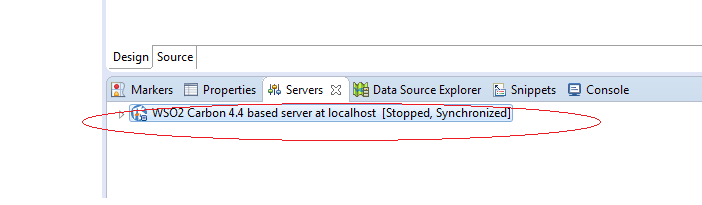
4) Now you can see the WSO2 ESB server showing under servers tab.
 

3. Run Composite application on ESB server.
1) Right click on the composite application name, and choose Export composite Application Project.

2) Enter export destination, then click next button.
 

3) Select artifact to include in the CAR file.
 

4Right click on the composite application, and choose Run As , then Run on Server.
 
5) Choose the server


6) Click on Finish button.

7) Server is running now. We may go to WSO2 ESB server to check if the services created in the developer studio have been deployed to the ESB server.